Skip to content
Tradie Forms
Contact supportOpen app
Tradie Forms
IntroductionQuick startFAQ

Using the app

Form typesWorkspaceJobsStarting a formCompleting a formAI assistantPDF downloadsShare links
Form detailsSaved signatureBusiness logo
Presets
PDF toolsTeamsCustom forms

Form guides

Overview

Account and billing

Managing your accountBilling

Support

TroubleshootingFeedback
Section
Section
Page title
Page title
Short description for the help article
Description continues on a second line
Short description for the help article
Description continues on a second line
Intro paragraph
Intro paragraph
Intro paragraph
Intro paragraph
Intro paragraph
Intro paragraph
Section heading
Section heading
Body paragraph
Body paragraph
Body paragraph
Body paragraph
Body paragraph
Body paragraph
Note
Callout title
Callout body
Callout body
Note
Callout title
Callout body
Callout body
Another heading
Another heading
Body paragraph
Body paragraph
Body paragraph
Body paragraph
Body paragraph
Body paragraph
List item one
List item two
List item three
List item one
List item two
List item three
Was this page helpful?
Yes
Yes
No
No

Loading documentation page

On this page
On this page
TOC item
TOC item
TOC item
TOC item
TOC item
TOC item
TOC item
TOC item
TOC item
TOC item

Using the app

Saved signature

Save your signature to your account and prefill it on forms

Save your signature once on your account, then reuse it on supported forms. Your saved signature is personal to you. It is not shared with teammates.

Solo or Team required.

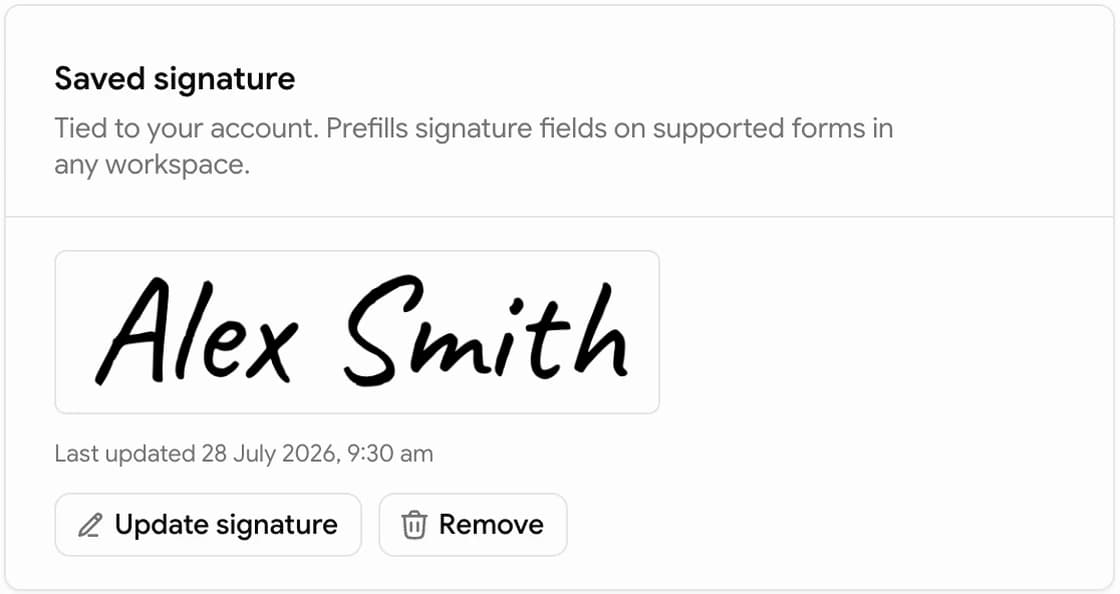
Saved signature card showing a stored signature with Update signature and Remove buttons
The Saved signature card sits at the top of Saved details. Once a signature is stored it shows here with the date it was last updated, ready to update or remove.

Where to manage it

Open Saved details and use the Saved signature card at the top of the page to:

  • View your saved signature
  • Update or remove it
  • Add one if you have not saved yet

You can also save from a signature field while filling a form.

Use on a form

On a signature field:

  1. Select Apply saved to fill the field from your account
  2. Or draw, type, or upload as usual, then select Save to account to update what is stored

On some forms, your signature may prefill automatically when you start a new form (Solo or Team). Turn that off under Settings with Automatically apply saved signature. Check the field before download if the job needs a different signature.

Personal account

Your saved signature follows your user account in personal and team workspaces. It is not a team-shared asset like team saved details.

Clear or change for a job

If a form needs a different signature for this job, clear the field and sign again before download. Saving to your account overwrites the previous stored signature.

Ask someone else to sign

On Solo or Team, an empty signature field in a cloud-saved draft can show Share link. This sends a time-limited link for that person to review the form details and sign the field. It is separate from your saved account signature.

See Share links for the steps, expiry, and revocation options.

Form details

Reusable licence, business, and contact blocks.

Business logo

Save your workspace logo and stamp it on forms.

Settings

Account preferences and data controls.

Share links

Send a completed PDF or request a signature by link.

Was this page helpful?

Form details

Save reusable form section details and prefill them on supported templates

Business logo

Save your workspace logo and stamp it on supported form fields

On this page

Where to manage itUse on a formPersonal accountClear or change for a jobAsk someone else to sign