Using the app

Completing a form

Section progress, validation, review, and toolbar actions for any Tradie Forms template

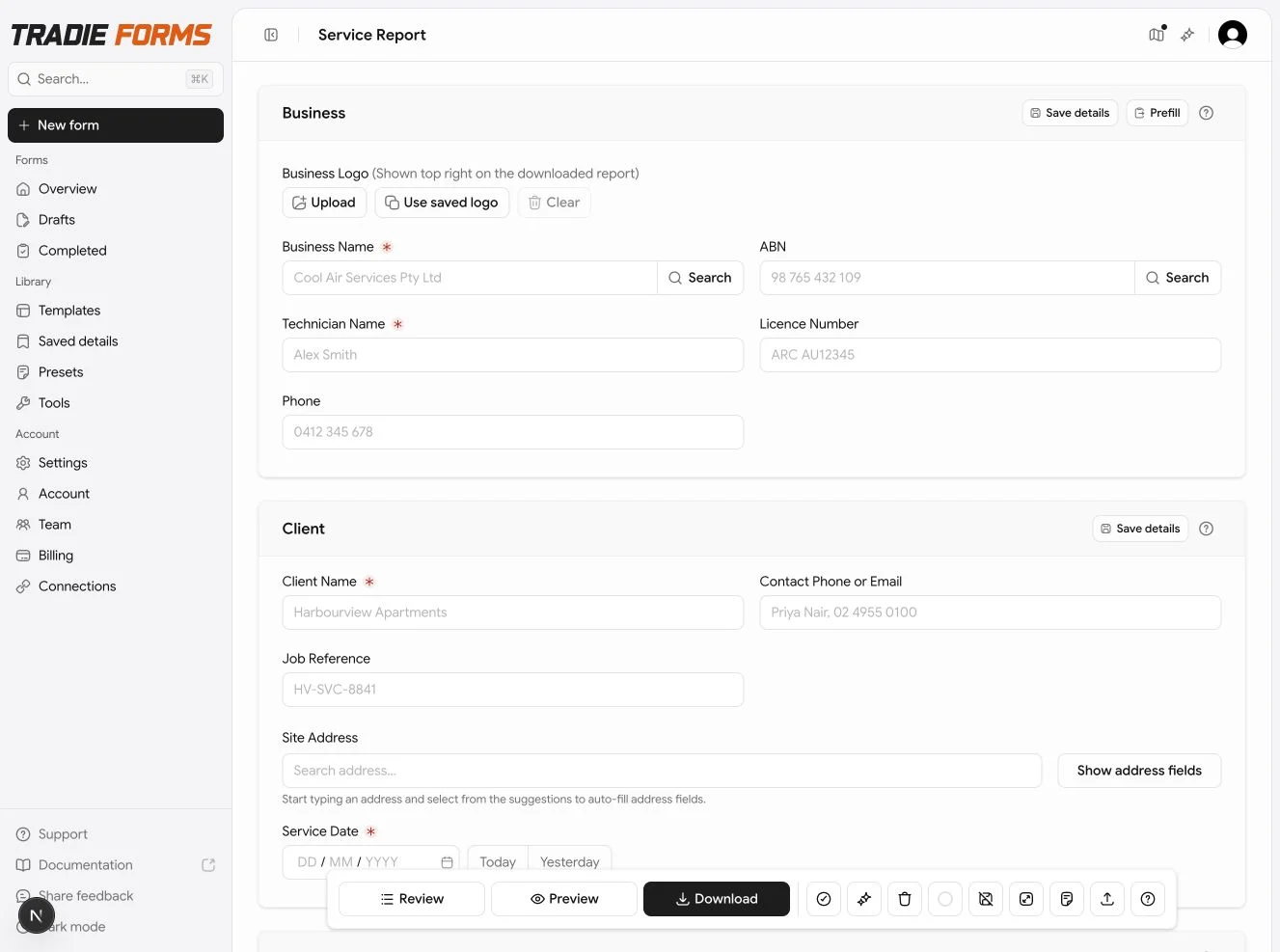
When you open a template, Tradie Forms shows a full-screen form editor, one section at a time, with progress and validation. The number of sections and fields depends on the template — see Form guides for field-by-field help on compliance forms.

  Section 1 ──► Section 2 ──► … ──► Review ──► Preview / Download

Section cards and progress

Each section is a card with:

  • A progress ring based on required fields and rules for that template
  • Help linking to the matching page under Form guides when available
  • Clear messages when a value is missing or invalid

The toolbar Form progress panel lists all sections so you can jump to what is still open.

Validation

Validate checks the whole form. Some templates have extra rules beyond empty fields — for example, at least one option in a checklist, or linked sections that must both be filled.

Fix errors on the section card, then validate again before export.

Section help icons open the matching guide under Form guides when one exists for your template.

Review

Review opens a read-only summary across sections. Use it before Preview or Download to catch typos in addresses, licence numbers, and readings.

Import from integrations

On Pro, connected integrations (e.g. ServiceM8) show a link icon beside supported fields. Pick a job, then tap the value to import. See Integrations.

Address blocks

Templates with addresses may include address search on Pro, or Show address fields for manual entry.

Toolbar actions

ActionWho can use it
ValidateEveryone
ReviewEveryone
PreviewEveryone on public templates; private templates require sign-in
DownloadSigned-in users; plan limits apply on Free
SampleFills demo data (for testing only — clear before a real job)
ClearReset entered values on the form
PresetsSave or load a full form snapshot (Pro)
Email / PortalSome compliance templates only — see PDF export

Download with validation warnings

If the form is incomplete or has errors, Download asks you to fix issues first. You can still choose Download anyway after confirming you accept responsibility for an inaccurate document.

Tradie Forms does not block download solely because a field looks unusual. Always read the preview before sending a PDF to a customer or authority.

Autosave indicator

The toolbar shows local and/or cloud save status. On Pro, cloud autosave waits a moment after you stop typing, then saves to your account. When you are not on Pro, changes save in this browser as you work.

Starting a form

Guest fill, local vs cloud drafts, Start fresh.

Form guides

Section-by-section help for compliance templates.

On this page