Getting started

Quick start

Sign up, pick a template, fill sections, and download a PDF

This walkthrough works for any template in your library — compliance, operational, or customer. Pick the form that matches your job, work through the sections, then export a PDF. For field-by-field help on compliance forms, see Form guides.

You can fill and preview without paying; you need to sign in to download the PDF.

  Sign up ──► Templates ──► Fill sections ──► Validate ──► Preview ──► Download PDF
     │            │              │               │            │
     │            │              │               │            └── See Billing for plan limits
     │            ▼              ▼               ▼
     │      Onboarding      Autosave         Review summary
     │      (state/trade)   (device/cloud)
     └────────────────────────────────────────────────────────

Create your account

Open tradieforms.com.au/sign-up and sign in with email or your preferred provider.

You can try public templates without an account, but you must sign in to download the PDF.

Complete onboarding

Choose your state and trade. Tradie Forms uses this to show relevant templates on Templates and your home screen. You can change these later in Settings.

When onboarding finishes, you land on Templates so you can start a form straight away.

Pick a template

Go to Templates in the sidebar and select the form you need.

  • Free (signed in): the form saves on this device only
  • Pro or Team: opens a cloud draft you can pick up on your phone, tablet, or computer

Workspace

How drafts and saving differ by plan.

Work through each section

Each template has its own sections — open them from the progress panel or section cards. Tap the help icon on a section header to open the matching guide when one exists.

Form guides

Section-by-section help for compliance templates.

Validate and review

Use Validate in the toolbar to see what still needs fixing. Open Review for a read-only summary across sections before you export.

Completing a form

Progress rings, validation, and toolbar actions.

Preview and download

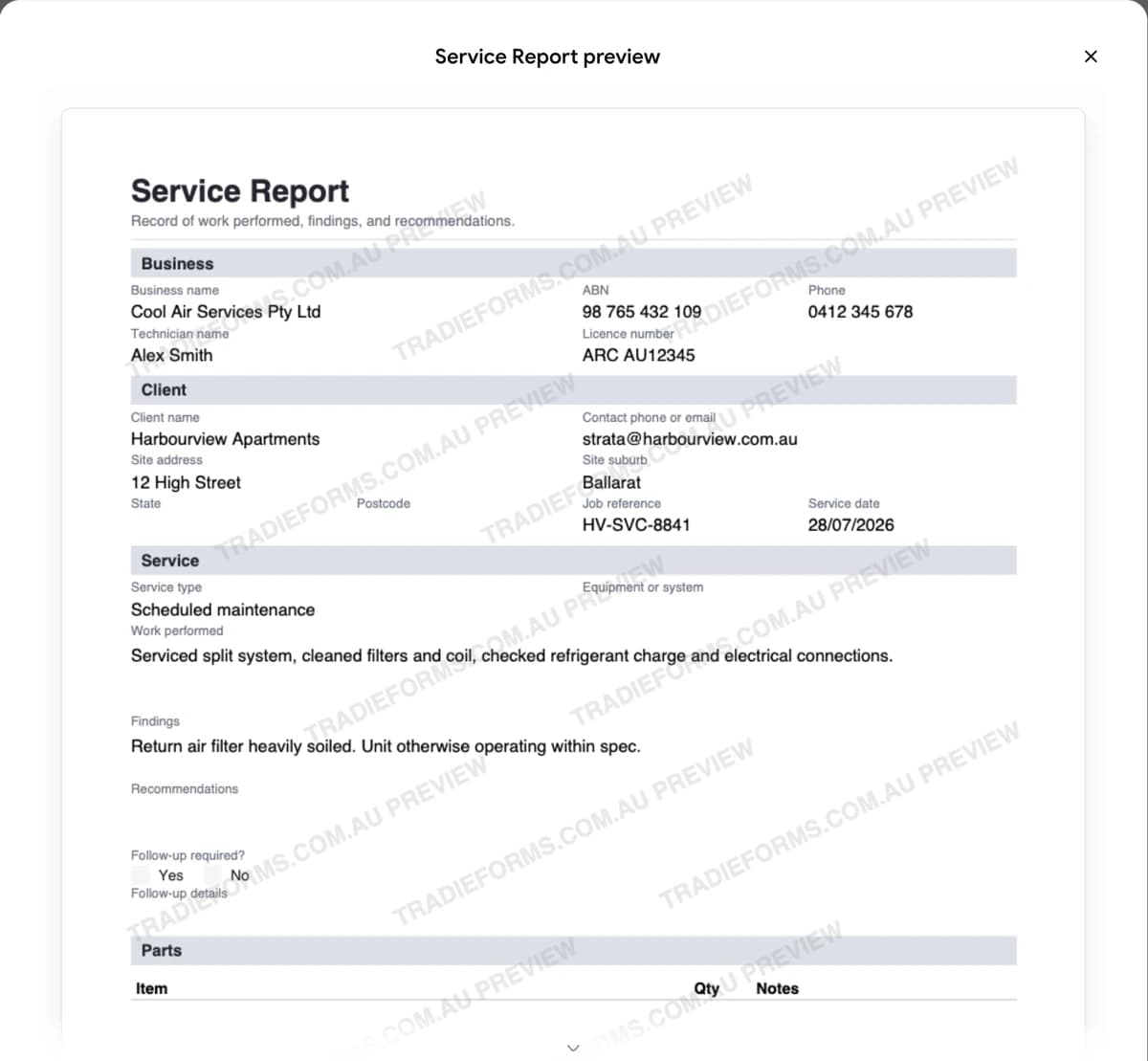
Preview shows the PDF in the app so you can check layout before you commit. Download saves the file to your device — sign-in required.

PDF export

Preview vs download, regeneration, and plan limits.

Next steps

On this page