Using the app
Starting a form
Guest fill, local vs cloud drafts, and resuming work
How you start and resume a form depends on whether you are signed in and on your plan.
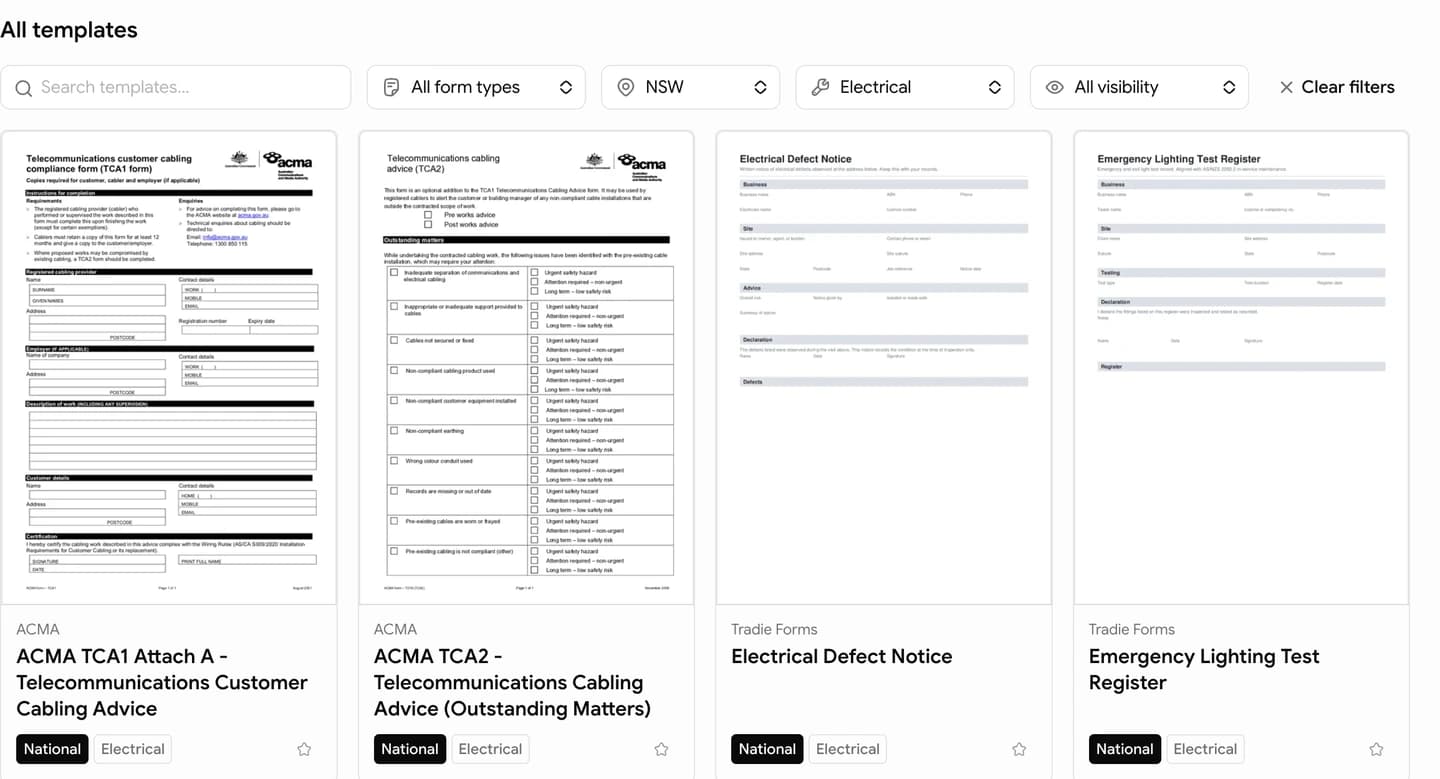
From Templates
Open Templates, pick a form, and start. You can also launch from shortcuts on Overview.
| Situation | What happens |
|---|---|
| Not signed in (public template) | Opens in your browser; progress saves on this device only |
| Free, signed in | Same — local save on this device |
| Pro (personal) | Opens a cloud draft you can resume on any device |
| Team with business selected | Cloud draft saved under the team account |
| Private custom template | Requires sign-in; only visible if your account has access |
Local draft vs cloud draft
- Local (guest or Free): data stays in this browser. Another phone or a cleared cache will not show it. Overview may prompt you to resume when you return to the same template on the same device.
- Cloud (Pro / Team): drafts appear under Drafts and sync while Cloud autosave is on in Settings.
Start fresh
If the app finds an old in-browser draft, choose Start fresh to begin a new record instead of continuing the previous one.
Routes in the app
/fill— used for guest and local autosave flows/new— creates a cloud draft (Pro / Team on public templates)
You do not need to remember these URLs; picking a template from Templates sends you to the right flow.
After you finish
When you download a PDF with Save completed form data enabled in Settings, the record moves to Completed. See PDF export for preview, download limits, and regeneration.
Workspace
Overview, Drafts, Completed, and the rest of the sidebar.