Using the app

Workspace

Navigate Overview, Drafts, Completed, and Templates for compliance, operational, and customer forms

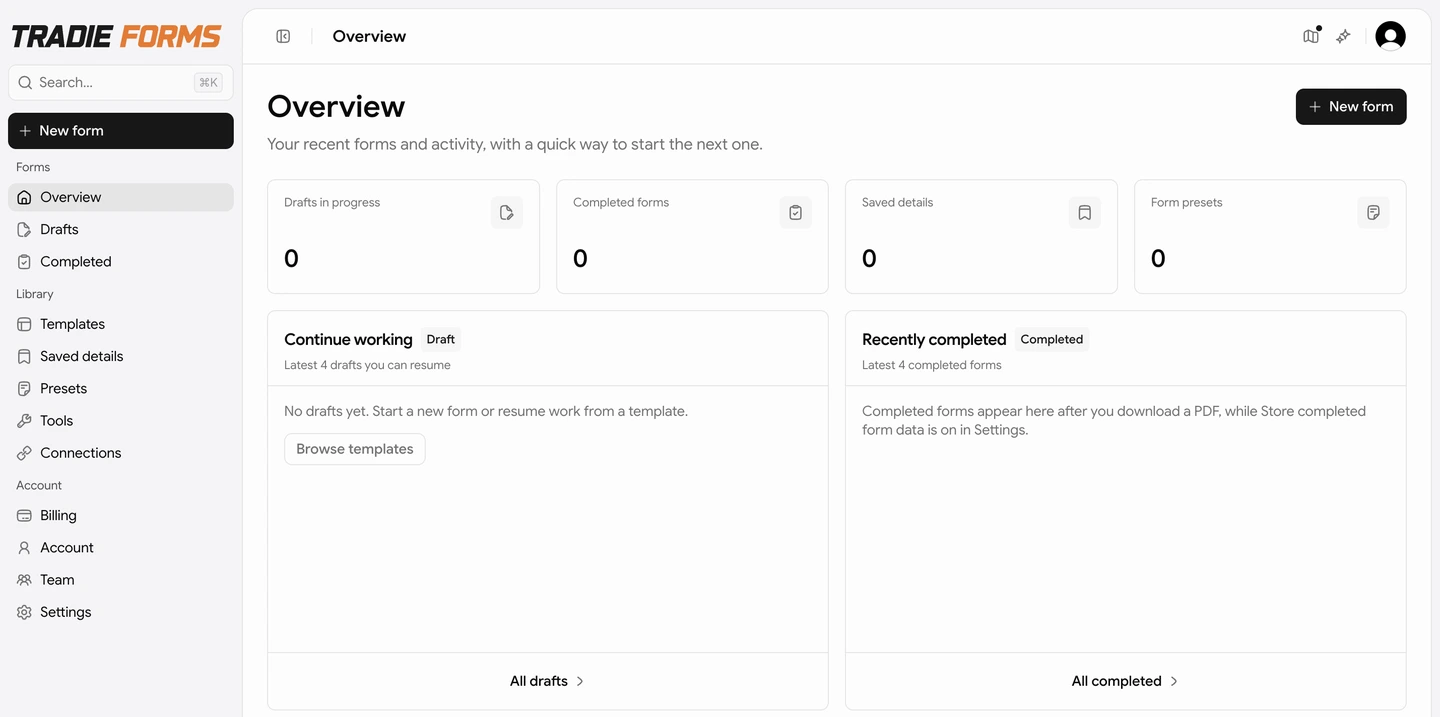
After you sign in to Tradie Forms, the sidebar is how you move around — for compliance certificates, daily operational paperwork, and customer documents. Each link below matches a sidebar item.

Forms area

Where in the appWhat it's for
OverviewRecent activity, shortcuts to templates, and prompts to resume drafts on this device
DraftsCloud drafts in progress (Pro and Team)
CompletedFinished jobs — reopen, regenerate PDF, PDF history

Free users often save work on this device only (shown on Overview when you return). The Drafts page is for cloud drafts — upgrade to Pro to resume on any phone or computer.

Library area

Where in the appWhat it's for
TemplatesBrowse public templates, private custom forms, and Request a form
PresetsFull-form snapshots (Pro)
SnippetsReusable blocks for repeat details
ToolsPDF helpers in the browser
IntegrationsConnect job systems (e.g. ServiceM8)

Account area

Where in the appWhat it's for
BillingPlan, usage, invoices, upgrade
AccountProfile and security
TeamTeam plan checkout and seats
SettingsAutosave, PDF audit trail, draft retention

Footer links include Support (in-app help) and Documentation (this site).

Starting and resuming forms

See Starting a form for guest fill, local vs cloud drafts, and Start fresh.

Completed forms

Completed lists finished records when Save completed form data is on in Settings (default for most signed-in workflows).

From a completed record you can:

  • Open — view or edit saved answers and export again
  • Regenerate — build a new PDF from saved data (plan limits apply on Free)
  • PDF history — see past exports when PDF audit trail is enabled (Team)
  • Send to ServiceM8 — attach the PDF to a job when connected (ServiceM8)

How many completed records you can see depends on your plan — see Billing.

Archived forms

Deleted forms move to Settings → Archived forms. Restore a record or delete it permanently.

Team accounts

When a team is selected in your account menu, new cloud drafts and snippets belong to that business. Switch workspace from the account menu; when none is selected, you are on your personal account.

On this page