Tradie Forms
Contact supportOpen app
Tradie Forms
IntroductionQuick startFAQ

Using the app

Form typesWorkspaceJobsStarting a formCompleting a formFill with AIPDF exportSaved detailsSaved signaturePresets
PDF toolsTeamsCustom forms

Form guides

Overview

Account and billing

Managing your accountBilling

Support

TroubleshootingFeedback
Section
Section
Page title
Page title
Short description for the help article
Section
Section
Page title
Page title
Short description for the help article
Body paragraph
Body paragraph
Body paragraph
Body paragraph
Body paragraph
Body paragraph
Body paragraph
Body paragraph
Body paragraph
Body paragraph
Body paragraph
Body paragraph
Body paragraph
Body paragraph
Body paragraph
Body paragraph
Body paragraph
Body paragraph
Body paragraph
Body paragraph
Body paragraph
Body paragraph
Body paragraph
Body paragraph
Body paragraph
Body paragraph
Body paragraph
Body paragraph
Body paragraph
Body paragraph
Body paragraph
Body paragraph
Body paragraph
Body paragraph
Body paragraph
Body paragraph
Body paragraph
Body paragraph
Body paragraph
Body paragraph

Using the app

Fill with AI

Describe job details in plain language and let the assistant fill supported form fields.

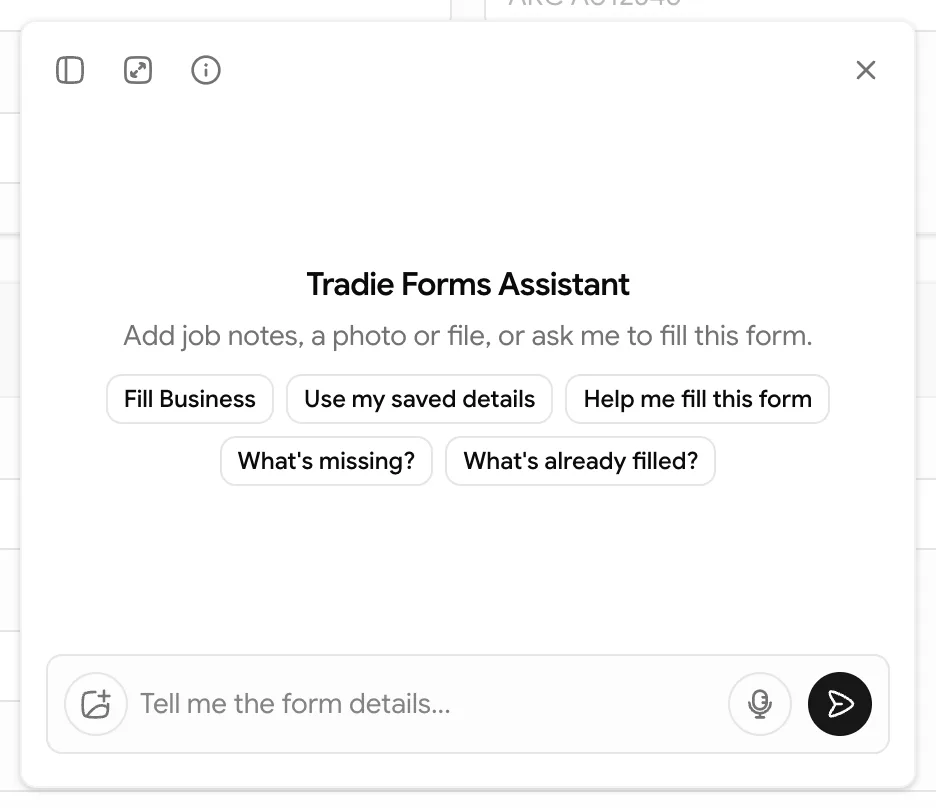
Fill with AI helps you get details into a form faster on Solo and Team plans. Open it from the form toolbar, describe the job in plain language, and the assistant fills matching supported fields.

Use it for rough notes, copied job details, photos, or dictated site notes. Treat the result as a draft. You still need to check every field, add signatures and form photos where required, preview the PDF, and complete or lodge the finished PDF yourself.

Tradie Forms helps prepare the PDF. Fill with AI does not decide whether the work complies, lodge forms with regulators or councils, or replace your final check.

Where to find it

While filling a supported form on Solo or Team:

  1. Select Fill with AI in the toolbar. It uses the same toolbar spot as Sample, so you will normally see one or the other.
  2. Describe the job, paste notes, attach photos, or use voice dictation in the chat panel.
  3. Review the field updates in the form.
  4. Finish signatures, photos, diagrams, and any remaining fields yourself.

The assistant is on by default for Solo and Team users. Turn it off under Settings -> Features if you prefer to fill without AI. This setting is personal to your account.

Good ways to use it

Give the assistant the same plain notes you would give an office admin:

Customer is Jordan Lee, 0412 345 678. Job was at 12 High Street, Ballarat. Tested today. Main device passed. Notes: replaced damaged cover.

You can also ask focused questions:

  • "Fill the customer section from these notes"
  • "Use my saved contractor details"
  • "What required fields are still missing?"
  • "What have I already filled in?"
  • "Change the test date to 28/06/2026"

What the assistant can do

  • Fill text fields, choices, dates, checkboxes, and other supported inputs on the current form
  • Read the form you are filling, current entered values, and the section you are near
  • Read photos or files you attach and use visible details where the form supports those fields
  • Stream voice dictation into the message box for you to review before sending
  • Apply saved details when you ask it to
  • Summarise what is already filled or what still looks missing

What it cannot do

  • Add or draw signatures on the form
  • Add photos or diagrams to form photo or drawing fields
  • Lodge, email, or submit forms for you
  • Guarantee compliance with regulator rules
  • Know facts you have not provided
  • Confirm that a licence, ABN, address, reading, or test result is correct in the real world

Attachments and voice

Use attachments when the details are already in a photo or small file, such as a job card, label, meter photo, or handwritten note. Photos work best when text is clear, upright, and close enough to read.

Photos and screenshots are resized automatically before send so they work on site. Add one photo per message. Very large originals or unsupported files may still be blocked. If a file will not send, try a closer photo or type the important details into chat.

Use the microphone button to dictate notes. The transcript is placed into the message box so you can read it before sending. If microphone permission is blocked, type or paste the notes instead.

Saved details

When saved details are available for the form, the assistant can list them by name and apply them when you ask. For example, ask it to use your saved contractor, licence, business, tester, or customer details.

After saved details are applied, check the fields like you would any other prefill. Update job-specific values before export.

What the assistant can see

While you chat, the assistant receives:

  • Current form answers you have already typed on the form you are filling
  • Attachments you add to a message (photos, screenshots, or small files)
  • Voice audio while you dictate, so it can transcribe your notes

That content is sent to our AI provider to suggest field values. It is handled under our providers' data agreements and is not used to train public models. PostHog analytics for the assistant records usage metadata only, not your chat text or form values.

Do not send information you are not comfortable sharing for that purpose.

Privacy and care

Messages, current form context, and attachments you send in chat are processed by our AI service so the assistant can suggest field values.

If you turn the assistant off in Settings, the Fill with AI toolbar button is hidden and chat requests are blocked for your account.

If something goes wrong

  • Upgrade required: Fill with AI needs Solo or Team.
  • Turned off in Settings: Turn AI form assistant back on under Features, or fill the form manually.
  • Button missing: Check you are signed in, on Solo or Team, and using a supported form. When available, Fill with AI replaces Sample.
  • Wrong field filled: Tell the assistant the exact field or section to change, or edit it manually.
  • Attachment blocked: Try a smaller JPEG, PNG, WebP, or text file.
  • Voice blocked: Check browser microphone permission, then try again.
  • Too many messages: If you send many messages in a short time, wait a bit and try again.

Always review the form and PDF preview before download. The assistant can miss context or misread a photo.

Completing a form

Sections, validation, review, and toolbar actions.

Saved details

Reusable business, licence, and customer blocks the assistant can apply.

Billing

Solo and Team features, including Fill with AI.

Was this page helpful?

Completing a form

Use sections, validation, review, autosave, saved details, and toolbar actions

PDF export

Preview, download, regenerate, store, and send completed form PDFs

On this page

Where to find itGood ways to use itWhat the assistant can doWhat it cannot doAttachments and voiceSaved detailsWhat the assistant can seePrivacy and careIf something goes wrong