Account and billing
Managing your account
Sign-in, profile, settings, onboarding, and archived forms in Tradie Forms
Account settings are in the app sidebar under Account and Settings. In-app help lives at Support.
Sign in and security
- Sign in / sign up: tradieforms.com.au/sign-in
- Account profile: open Account for your name, email, and security options
- Use a strong password and turn on two-factor authentication if your business requires it
You can fill public forms without an account, but downloads, cloud drafts, and Pro tools require sign-in.
Onboarding
First sign-in shows a short onboarding flow:
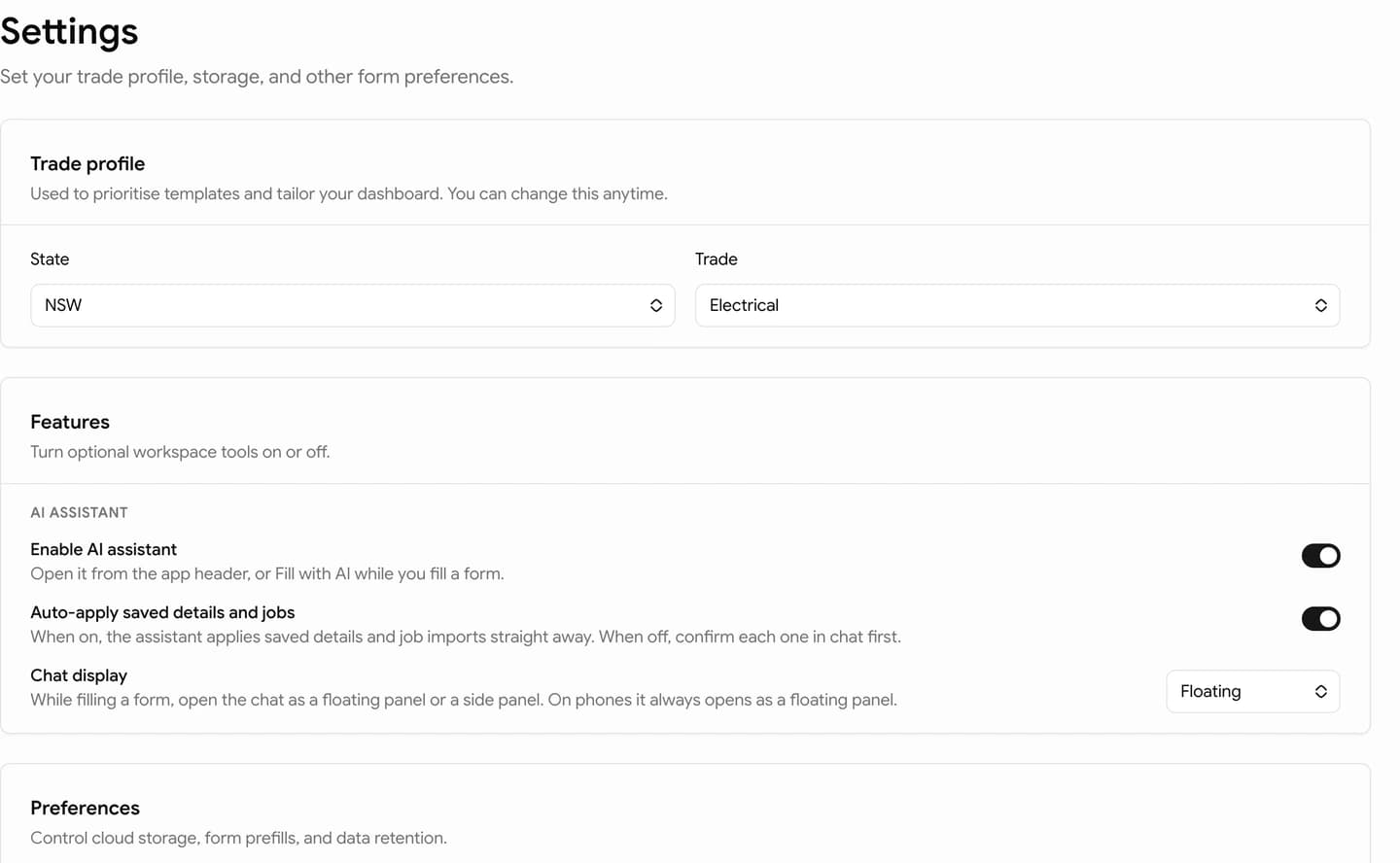
- State where you work (Australia)
- Trade (electrician, plumber, gasfitter, builder, …)
Tradie Forms saves these so Templates and your home screen show relevant forms. You can close it and finish later from the banner.
Settings
Open Settings for preferences such as:
| Setting | What it does |
|---|---|
| Save completed form data | When on, downloading saves the form to Completed |
| Cloud autosave | Pro — sync in-progress drafts to your account (when enabled) |
| PDF audit trail | Team — store each exported PDF so you can open PDF history on a completed record |
| Draft retention | Pro — auto-delete cloud drafts after 7–90 days (default 30) |
Turning PDF audit trail off still lets you save form answers and regenerate a PDF from Completed — you just will not keep every past file version in the app.
Archived forms
Deleted forms appear under Settings → Archived forms. Restore a record or delete it permanently.
Team accounts
If you use a team plan:
- Switch business from the account menu
- Invite and manage members on Organisations
- Team billing and seats on Team
If no team is selected, you are on your personal account.
Billing
Plans, limits, and payment portal.
Teams
Shared workspace and members.