Skip to content
Tradie Forms
Contact supportOpen app
Tradie Forms
IntroductionQuick startFAQ

Using the app

Form typesWorkspaceJobsStarting a formCompleting a formAI assistantPDF downloadsShare links
Presets
PDF toolsTeamsCustom forms

Form guides

Overview
QLD Form 1QLD Form 11QLD PDR Form 12QLD Form 14QLD Form 19QLD Form 2QLD Form 3QLD Form 5QLD Form 6QLD Form 9

Account and billing

Managing your accountBilling

Support

TroubleshootingFeedback
Section
Section
Page title
Page title
Short description for the help article
Description continues on a second line
Short description for the help article
Description continues on a second line
Intro paragraph
Intro paragraph
Intro paragraph
Intro paragraph
Intro paragraph
Intro paragraph
Section heading
Section heading
Body paragraph
Body paragraph
Body paragraph
Body paragraph
Body paragraph
Body paragraph
Note
Callout title
Callout body
Callout body
Note
Callout title
Callout body
Callout body
Another heading
Another heading
Body paragraph
Body paragraph
Body paragraph
Body paragraph
Body paragraph
Body paragraph
List item one
List item two
List item three
List item one
List item two
List item three
Was this page helpful?
Yes
Yes
No
No

Loading documentation page

On this page
On this page
TOC item
TOC item
TOC item
TOC item
TOC item
TOC item
TOC item
TOC item
TOC item
TOC item

Form guides

QLD Form 6

Overview and section help for Queensland Form 6 remote area compliance notices

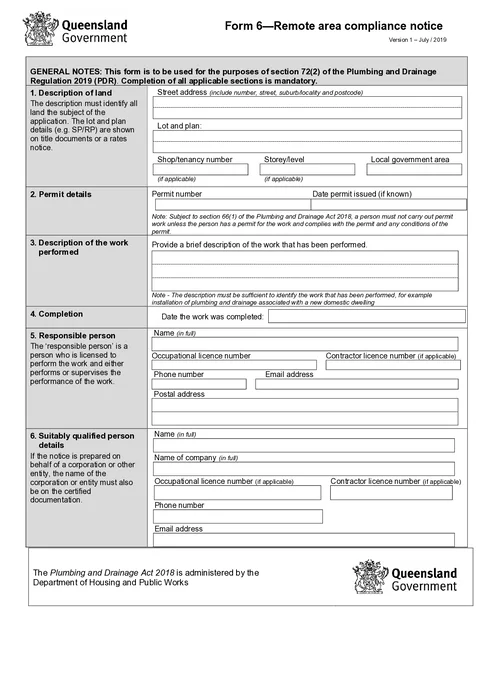
QLD Form 6 PDF preview
QLDPlumbing

Queensland Government

Remote area compliance notice for plumbing and drainage work under section 72(2) of the Plumbing and Drainage Regulation 2019.

Open this form

Use this guide when you fill QLD Form 6 Remote Area Compliance Notice in Tradie Forms. The web form follows the Queensland PDF layout for remote area plumbing and drainage compliance.

Open the form after confirming the property and work are covered by a current local government remote area declaration.

Before you start

Have these ready:

  • Site address and local government area
  • Permit number and issue date
  • Description of work performed
  • Date work was completed
  • Responsible person details
  • Qualified person details if the notice is prepared on behalf of an entity
  • Declaration qualification, signature, and date

Form 6 is only for eligible work in an area the local government has declared remote. Give the notice to the local government within 10 business days after the work becomes operational and fit for use.

After download

  1. Preview the permit, work, completion date, people and declaration.
  2. Download the signed PDF and give it to the local government within the current required period.
  3. Keep the notice, lodgement record and local government decision with the permit file.

Tradie Forms prepares the notice. It does not decide whether the area or work is eligible, accept the notice or issue the final inspection certificate.

Property

Identify the land where the plumbing work was performed.

What to enter

  • Street address
  • Lot and plan details where relevant
  • Shop, tenancy, or level where relevant
  • Local government area

Tips

Use address search on Solo or Team to start the address, then check the manual fields. Lot and plan details usually need to come from title, rates, or permit documents.

Before download

Check the property details match the permit and the completed work.

Permit

Record the compliance permit details for the remote area work.

What to enter

  • Permit number
  • Date the permit was issued, if known

Tips

Match the permit number to your permit documents. The date helps council link the notice to the correct permit file.

Before download

Confirm the permit details match the work described in the notice.

Work

Describe the plumbing and drainage work that has been completed.

What to enter

  • A brief description that identifies the work performed

Tips

Use enough detail for council to recognise the work, for example installation of plumbing and drainage associated with a new domestic dwelling.

Before download

Check the description matches the permit and the work you completed on site.

Completion

Record when the plumbing work was finished.

What to enter

  • Date the work was completed

Tips

Use the date the work was actually finished, not the date you are lodging the notice.

Before download

Check the completion date matches your site records and permit requirements.

Responsible Person

Enter the responsible person licensed to perform or supervise the work.

What to enter

  • Full name
  • Occupational licence number
  • Contractor licence number, if applicable
  • Phone and email
  • Postal address

Tips

Save responsible person details on Solo or Team to prefill on your next Form 6.

Before download

Check licence numbers and contact details match your current records.

Qualified Person

Complete this section when the notice is prepared on behalf of a corporation or other entity.

What to enter

  • Full name
  • Company name, if applicable
  • Occupational licence number, if applicable
  • Contractor licence number, if applicable
  • Phone and email

Tips

If you are signing as the responsible person, you may leave this section blank. Save qualified person details on Solo or Team when you use the same details often.

Before download

Check entity and licence details match the certified documentation for the job.

Declaration

Sign the declaration to confirm the work complies with the Plumbing and Drainage Regulation 2019.

What to enter

  • Your qualification under the declaration (tick one)
  • Signature
  • Date

Tips

The form may be signed by either the responsible person or the suitably qualified person. Pick the option that matches your role on the job.

Before download

Check your qualification, signature, and date are complete before you download the PDF.

Was this page helpful?

QLD Form 5

Overview and section help for Queensland Form 5 testing or commissioning reports

QLD Form 9

Overview and section help for Queensland Form 9 backflow test reports

On this page

Before you startAfter downloadPropertyWhat to enterTipsBefore downloadPermitWhat to enterTipsBefore downloadWorkWhat to enterTipsBefore downloadCompletionWhat to enterTipsBefore downloadResponsible PersonWhat to enterTipsBefore downloadQualified PersonWhat to enterTipsBefore downloadDeclarationWhat to enterTipsBefore download