Skip to content
Tradie Forms
Contact supportOpen app
Tradie Forms
IntroductionQuick startFAQ

Using the app

Form typesWorkspaceJobsStarting a formCompleting a formAI assistantPDF downloadsShare links
Presets
PDF toolsTeamsCustom forms

Form guides

Overview
NT Gas Works Notification

Account and billing

Managing your accountBilling

Support

TroubleshootingFeedback
Section
Section
Page title
Page title
Short description for the help article
Description continues on a second line
Short description for the help article
Description continues on a second line
Intro paragraph
Intro paragraph
Intro paragraph
Intro paragraph
Intro paragraph
Intro paragraph
Section heading
Section heading
Body paragraph
Body paragraph
Body paragraph
Body paragraph
Body paragraph
Body paragraph
Note
Callout title
Callout body
Callout body
Note
Callout title
Callout body
Callout body
Another heading
Another heading
Body paragraph
Body paragraph
Body paragraph
Body paragraph
Body paragraph
Body paragraph
List item one
List item two
List item three
List item one
List item two
List item three
Was this page helpful?
Yes
Yes
No
No

Loading documentation page

On this page
On this page
TOC item
TOC item
TOC item
TOC item
TOC item
TOC item
TOC item
TOC item
TOC item
TOC item

Form guides

NT Gas Works Notification

Overview, section list, and checks for the NT WorkSafe gas works notification

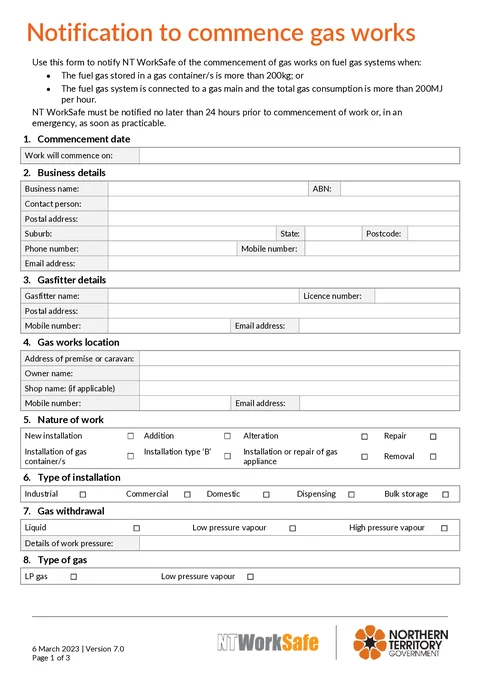
NT Gas Works Notification PDF preview
NTGasfitting

NT WorkSafe

Fill the NT notification to commence gas works before eligible jobs start, then download the NT WorkSafe PDF layout.

Open this form

The NT Notification to Commence Gas Works helps prepare the PDF used to notify NT WorkSafe before specified gas work starts.

Tradie Forms follows the official form order and maps your answers to the PDF layout.

NT WorkSafe requires this notification when fuel gas stored in containers is more than 200 kg, or a system connected to a gas main has total gas consumption above 200 MJ per hour. Notify at least 24 hours before work starts, or as soon as practicable in an emergency.

Before you start

Have these ready:

  • Work commencement date
  • Business name, ABN, postal address, and contact person
  • Licensed gasfitter details
  • Premise or caravan address
  • Nature of work and installation type
  • Gas withdrawal, gas type, and gas source
  • Piping sizing values and table reference where relevant
  • Storage tank or gas container details where relevant
  • Compliance checklist answers
  • Site plan details, diagram, or photo
  • Declaration date and signature if not lodging electronically

Confirm that the job meets one of the official thresholds and check the planned start time before you prepare the notification.

Reuse and lookups

  • Save Business Details and Gasfitter Details as saved details
  • Use ABN lookup on supported business fields on Solo or Team
  • Use address search on NT address blocks on Solo or Team
  • Type details manually whenever lookup does not return the right result

After download

Preview every page, then download the PDF. The official page offers an online notification or a downloadable form to complete and email. Follow the current method shown by NT WorkSafe.

Tradie Forms is not affiliated with NT WorkSafe. You are responsible for checking whether the notification is required and lodging it correctly.

Work Will Commence On

Enter the date the gas work will start on site.

What to enter

  • Use the actual planned start date for the eligible gas work
  • Use the date shortcut only when it matches the job
  • Do not use the form date unless work starts that day

Before download

Check the date against your job booking, crew schedule, and any NT WorkSafe timing requirement for the job.

For eligible work, notify at least 24 hours before starting. In an emergency, notify as soon as practicable.

Business Details

Enter the business or notifier details for the gas works notification.

What to enter

  • Business Name: legal or trading name used for the job
  • ABN: Australian Business Number, if applicable
  • Contact Person: person NT WorkSafe or the owner can contact
  • Postal address: business postal address
  • Phone / Mobile: contact numbers for follow-up
  • Email Address: business or notifier email

Lookup and saved details

On Solo or Team, use ABN lookup to fill or confirm the business name and ABN. Save this section as a Business Details saved detail so you can prefill it on the next NT gas job.

Before download

Check the ABN and business name match the entity responsible for the notification. If lookup does not find the right record, type the details manually.

Gasfitter Details

Enter the licensed gasfitter carrying out the work.

What to enter

  • Gasfitter Name: full name of the licensed gasfitter
  • Licence Number: licence or registration number used for the work
  • Postal address: gasfitter postal address
  • Mobile Number: best contact number
  • Email Address: contact email

Saved details

Save this section as Gasfitter Details once it is correct. Prefilling saved details requires Solo or Team.

Before download

Check the name, licence number, and contact details against your licence records and job paperwork.

Gas Works Location

Enter where the gas work will be carried out.

What to enter

  • Address of premise or caravan: the job location
  • Owner Name: owner or site contact where known
  • Shop Name: tenancy, shop, or trading name if applicable
  • Mobile Number / Email Address: site contact details

Address search

On Solo or Team, use address search for the premise address. Check rural properties, caravan sites, lot details, tenancy names, and postcode after selecting a suggestion.

Before download

Make sure the location is specific enough for NT WorkSafe or the owner to identify the installation.

Nature of Work & Installation

Tick every work type and installation category that applies to the job.

Nature of work

  • New installation
  • Addition
  • Alteration
  • Repair
  • Gas containers
  • Installation type B
  • Appliance installation or repair
  • Removal

Type of installation

  • Industrial
  • Commercial
  • Domestic
  • Dispensing
  • Bulk storage

Before download

Check the selections match the actual scope. If the job has more than one kind of work, tick every applicable option. Match the installation type to the site use and the work being notified.

Gas Withdrawal, Type & Source

Record how gas is withdrawn from the supply, the gas type, the source, and work pressure details.

Gas withdrawal

  • Select Liquid, Low pressure vapour, or High pressure vapour as applicable
  • Add work pressure details, such as appliance or system pressure
  • Include units where useful

Type of gas

  • LPG
  • Natural gas

Gas source

  • Cylinder
  • Bulk tank

Before download

Check the withdrawal method and pressure against your site measurements, design, and commissioning notes. Confirm the gas type matches the supply, appliance data, and site paperwork. Make sure the gas source matches the installation, and add tank or container details in later sections when they apply.

Purpose of System

Describe the purpose of the gas system in plain terms.

What to include

  • What the system serves
  • Appliances, plant, or equipment connected
  • Key site context, such as kitchen, boiler, dispenser, or industrial process
  • Any important limit to the notified scope

Before download

Keep the wording clear enough for a person reading the PDF to understand what the notified gas work covers.

Piping Sizing

Use this section for piping sizing values and references.

What to enter

  • Gas usage: value and units where useful
  • Pressure drop: value and units
  • Main run: length or run detail
  • High-pressure first stage: value when applicable
  • Table Number: sizing table or standard reference used

Calculation notes

If you use formulae or calculations, include the calculations on the site plan, attached image, or supporting paperwork as required by the job.

Before download

Check the values against your design, measurement, and commissioning records.

Gas Storage Tank

Add storage tank rows when the notification includes gas storage tanks.

What to enter

For each tank, add:

  • Capacity
  • Manufacture
  • Serial number
  • Plant item number
  • Expiry date

You can add up to 3 storage tanks.

Before download

Check every number against the tank plate, inspection record, or site documentation. Leave unused rows out rather than adding blank rows.

Gas Container/s

Add rows for gas containers other than cylinders filled on the premises.

What to enter

For each container, add:

  • Capacity
  • Manufacturer
  • ID number
  • Manufacture date
  • Test date

You can add up to 3 gas containers.

Before download

Check ID numbers and dates from the container marking or records. Do not add rows for containers that are not part of this notification.

Compliance Checklist

Tick checklist items where the work conforms.

How to use it

Read each item and tick only the boxes that apply to this installation. The checklist follows the same intent as the official form and includes items such as ignition sources, drains, valves, protection, signs, pipework, and safety controls.

Use Check All only when you have confirmed every item is true for the job.

Before download

Untick anything you have not verified. Add supporting detail in the site plan section when the checklist needs location or distance information.

Site Plan and Installation

Use this section for installation plan particulars.

Choose an input type

You can provide:

  • Text: type plan details directly
  • Diagram: draw a simple site plan in the app
  • Image: upload a photo or scan of your site plan

Only the selected input type is downloaded.

What to include

Include details relevant to the notification, such as public places, protected works, ignition sources, gas container location, clearances, and distances.

Before download

Open the PDF preview and check the plan, diagram, or image is readable and placed correctly.

Notifier Declaration

Complete the declaration after checking every section.

What to enter

  • Tick the Notifier Declaration to confirm the information is true and correct
  • Tick I have submitted this form electronically only when that matches your lodgement method
  • Add your notifier signature when required
  • Enter the declaration date

Signature

You can draw or upload a signature where the form requires one. If you lodge electronically and the official process does not require the signature field, follow the authority process for your job.

Before download

Check the declaration date, signature, and electronic submission selection before lodging or sending the PDF.

Open the NT Gas Works Notification

Prepare the notification before applicable gas work starts.

Was this page helpful?

QLD Form 72

Overview and section help for Queensland Form 72 periodic testing and maintenance

VIC Pesticide Record

How to complete the Victorian pesticide application record in Tradie Forms.

On this page

Before you startReuse and lookupsAfter downloadWork Will Commence OnWhat to enterBefore downloadBusiness DetailsWhat to enterLookup and saved detailsBefore downloadGasfitter DetailsWhat to enterSaved detailsBefore downloadGas Works LocationWhat to enterAddress searchBefore downloadNature of Work & InstallationNature of workType of installationBefore downloadGas Withdrawal, Type & SourceGas withdrawalType of gasGas sourceBefore downloadPurpose of SystemWhat to includeBefore downloadPiping SizingWhat to enterCalculation notesBefore downloadGas Storage TankWhat to enterBefore downloadGas Container/sWhat to enterBefore downloadCompliance ChecklistHow to use itBefore downloadSite Plan and InstallationChoose an input typeWhat to includeBefore downloadNotifier DeclarationWhat to enterSignatureBefore download